


PDF Scanner - Reader
3.369.00 Reviews
App Specs
- Version
- 1.1.2
- Updated On
- License
- Free
- Downloads
- 1,000,000+
- Developer
- Al Fayrouz
- Categories
- Tools
- Platform
- Android
Screenshots
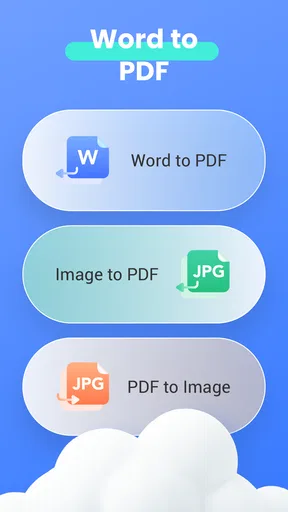
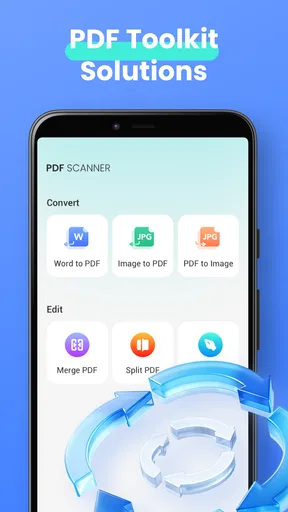
 Analysis by AppCompare
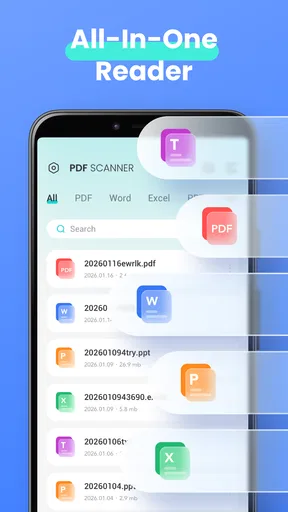
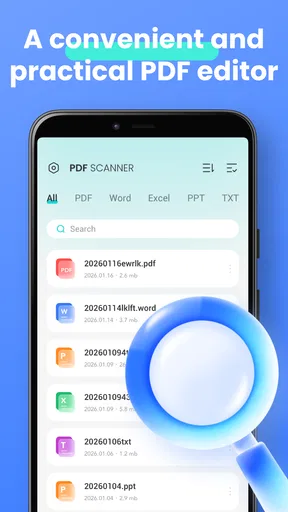
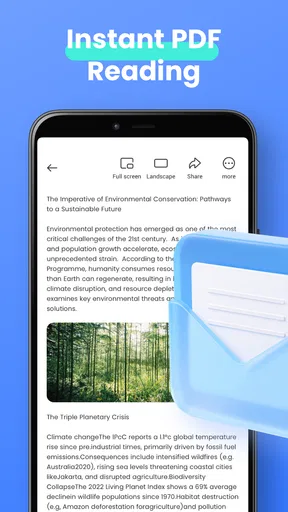
When someone sends me a document at an inconvenient moment, I usually want to open it, check the important details, and move on—not install a full office suite just to read one page. PDF Scanner - Reader is aimed at that quick, practical job. It is a free tools app from Al Fayrouz for viewing PDF, Excel, and DOCX files, and its appeal is the promise of a lighter stop between receiving a file and deciding what to do with it.
That focus is useful, but it also sets a boundary: I would approach this as a document viewer, not assume it can replace a scanner, editor, spreadsheet workspace, or complete office package. Its short store description calls it “PDF Scanner,” while its broader role is reading several document formats. That distinction matters if you are choosing it for a particular task.
From an incoming file to a useful answer
I find it helps to decide what answer I need before I open a document: a date, a line in a form, or a value in a sheet. That gives me a clear way to judge whether a quick mobile check is enough, and it keeps a brief review from turning into a search through the whole file. Next, I look at how to get from the file’s original location to the information I need.
Start with the document you actually need
A realistic use is opening a PDF attachment while waiting for an appointment, checking a DOCX someone shared before a meeting, or reviewing an Excel file when your laptop is nowhere nearby. In each case, the first question is simple: can I get to the contents quickly enough to make a decision? A compact reader can be more convenient than launching an office app with editing tools you do not need.
I would choose a viewer like this when the task is inspection rather than production. For example, if a colleague sends a spreadsheet and asks me to confirm which item is listed, I only need to locate and read the relevant information. If I need to change formulas, revise formatting, or return a carefully edited document, that is a different job and a dedicated office app is the more sensible choice.
The app has a modest footprint in the market: it has over a million installs and an average rating of 3.3 from around 1,600 ratings. I read that as a reason to keep expectations practical rather than assume every file and workflow will feel polished. It is rated for Everyone, so its intended audience is broad, but suitability still depends on the documents you handle and how much control you need over them.
Opening files without turning a quick check into a project
For a smooth routine, I would keep the file’s location in mind before opening the reader. If it arrived in an email or messaging app, use the sharing or open-with option there when available; if it was saved earlier, look for it through the device’s file-browsing route. This small habit helps distinguish an app problem from a file-access problem. A document may be on the phone but not in the folder you first expect.
Worth Reading Before You Choose

EA SPORTS FC Mobile 26 Is a Bigger Football Game, but It Takes Time

Flipboard Shows What News Apps Must Do Beyond the Feed

Switching to Android Auto Means Rethinking Your Driving Routine

Google Calendar Makes a Crowded Week Easier to Manage

Ludo King Makes the Most of the Minutes Between Plans

Baby Panda World Brings Quick Play to Modern Phones, but Its Game Library Feels Busy
Once the file is open, the useful test is whether the page or sheet is readable at the scale you need. With a PDF, I would check headings, dates, and any small print before relying on a quick glance. With a spreadsheet, I would make sure I am looking at the right sheet and can interpret the columns in context. A lightweight viewer is valuable when it gets me to the answer, but the user still has to verify that the displayed content is complete and legible.
A non-obvious tip for reviewing a document on a small screen is to begin with the exact question you need answered. Rather than scrolling aimlessly through a long file, note the name, date, or section you are trying to confirm, then check the surrounding text as well. That reduces the risk of mistaking a similar entry for the one that matters. It is especially helpful with forms and spreadsheets, where a single row or label can change the meaning.
Choosing the right handoff after reading
Reading is often only one stage in a real document workflow. After checking a file, you may need to send it to a colleague, annotate it, revise it, or discuss a number with someone. I would treat PDF Scanner - Reader as the inspection point in that chain, then hand the document to a tool designed for whatever comes next. That keeps a quick viewer from becoming an awkward substitute for an editor.
For instance, if I am confirming the date on a PDF before replying to a message, I can use the reader to check the source and then return to the conversation to respond. If the next step is changing a paragraph in a DOCX, I would open it in a word processor rather than expect a viewing app to provide a dependable editing workflow. The same applies to Excel: checking a value is not the same as safely updating a formula or preserving spreadsheet formatting.
This separation is a practical strength, not a flaw by itself. A focused reader can help avoid the distraction of editing controls when all you need is a quick look. The trade-off is that handoffs add a step. If you routinely move from reading to modifying and back again, an office suite that handles both stages may be faster overall.
For a day-to-day example, imagine receiving a shared schedule just before leaving home. I would open it, check the relevant date and nearby entries, then reply in the original conversation with the information. If the schedule needs changing, I would switch to a spreadsheet app and make the revision there. Keeping those stages separate is less convenient than one all-in-one workflow, but it also makes clear which app is responsible for viewing and which one is responsible for changing the source.
What a successful result looks like
For me, the best outcome is not an elaborate workflow; it is knowing what the file says and being able to act on that information. A receipt can be checked before an expense conversation, a document can be reviewed before a call, or a spreadsheet entry can be verified before sending a reply. These are small jobs, but they are exactly where a phone-based viewer can save time.
It is also worth separating “opened successfully” from “safe to rely on.” If a document is important, check its title and context, inspect the relevant portion carefully, and avoid basing a decision on a cropped or partially visible line. On a spreadsheet, labels and neighboring cells can change how a number should be understood. On a PDF, a faint footnote may qualify the main statement. A quick reader supports a decision; it does not remove the need to read attentively.
PDF Scanner - Reader is currently at version 1.1.2, and its rating suggests a mixed rather than universally enthusiastic reception. I would therefore try it with ordinary, noncritical files first. That gives you a chance to see whether its handling suits the documents you receive, before you depend on it for a time-sensitive or consequential review.
Where the workflow can break
The main limitation is scope. The app is presented as a viewer for PDF, Excel, and DOCX, so I would not pick it on the assumption that it can scan paper, convert file types, edit layouts, or preserve complex office formatting. The word “Scanner” in its brief description can create a broader expectation than “reader” does. If your goal is to capture a paper page with the camera, check that the app actually supports the scanning workflow you want before making it your default.
File complexity is another point to watch. A document that looks straightforward on a computer may rely on unusual fonts, wide tables, dense spreadsheet layouts, or formatting that is hard to inspect on a phone. Even when a file opens, a narrow screen can make comparison and navigation tiring. For a large spreadsheet or a contract with fine print, I would prefer a tablet or desktop when accuracy matters more than convenience.
There is also a difference between an occasional reader and a daily document hub. If you frequently receive files from several sources, need dependable organization, or want to annotate and edit without switching apps, a fuller office suite or a dedicated PDF tool may fit better. The extra features in those alternatives can be worthwhile when they match your routine, though they may feel unnecessary for someone who only wants to check an attachment now and then.
One useful way to decide is to test a representative file rather than judge the app from a clean, simple page. Try a PDF with small text or a spreadsheet with several columns, and see whether the information you need is comfortable to inspect. If you regularly receive documents that are sensitive or important, make your final decision based on careful checks with those files, not on one successful opening. For casual reading, convenience may be enough; for decisions that depend on exact formatting or complete context, a larger screen and a more specialized tool are safer choices.
Who I would recommend it to
I would consider this app if you want a free, straightforward place to try opening common document formats on a phone, and your usual task is reading rather than changing files. It is most appealing to people who value a lighter tool for occasional checks: students reviewing a shared handout, someone verifying a work attachment on the move, or anyone who needs to look at an Excel or DOCX file without immediately editing it.
I would skip it as my primary document solution if my work depended on extensive spreadsheet changes, precise page layout, annotations, scanning paper, or a polished chain from review to revision and sharing. In those cases, choose a tool built around the whole task rather than stretching a reader beyond its stated role. If you only need to inspect a file, though, installing a large suite may be more than the job requires.
Compared with using the office apps many people already have, the attraction here is a narrower purpose: open a file and inspect it without committing to a full editing session. The trade-off is that established office suites are usually the better fit when you need to preserve formatting, make changes, or move smoothly from review to collaboration. I would choose based on the next action, not just the file extension. If you need to read and reply, a viewer may be enough; if you need to revise and return the document, start with the editor you trust.
Overall, PDF Scanner - Reader makes the most sense as a simple checkpoint in a mobile workflow: open a file, verify what it says, then pass it to the right app or conversation for the next step. I like that narrow use case because it is easy to understand, but I would keep a capable office or PDF editor available for anything more demanding. Try it with a routine document first; if it opens the formats you commonly receive and lets you read them comfortably, it may be a useful everyday backup rather than a complete replacement for your other tools.
Pros
- Scans can be saved as PDFs for easy sharing and archiving.
- Automatic edge detection helps frame documents neatly.
- Useful for digitizing receipts
- notes
- and multipage paperwork.
- Adjustable image filters can improve text visibility.
- A built-in reader lets you review PDFs without switching apps.
Cons
- Scan quality depends heavily on lighting and camera focus.
- Glare or shadows can make pages harder to read.
- Editing scans may take extra time when edge detection misses.
- Large
- high-resolution scans can use significant storage.
- Some features may be limited or require in-app purchases.
FAQs for PDF Scanner - Reader
What is PDF Scanner - Reader, and what can I use it for?
PDF Scanner - Reader is designed to help you turn paper documents into digital files and read PDFs on your phone or tablet. Depending on the app version, you may be able to scan pages with your camera, crop and adjust images, combine pages into a document, and open or organize existing PDFs. Check the app listing for the exact features supported on your device.
How do I scan a document and save it as a PDF?
Open the scanning feature, point your camera at the page, and capture the image in good lighting. Review the detected page edges and adjust the crop or orientation if needed, then add any additional pages before saving or exporting the document as a PDF. Camera permissions are generally required, and the available editing or export options can vary by version.
Can PDF Scanner - Reader recognize text or edit scanned documents?
Some scanner apps include optical character recognition, which can make text in a scan searchable or selectable, while others save each page as an image inside a PDF. Editing text already present in a PDF may also be limited. Review the app’s current feature list and test a sample document before relying on text recognition, translation, or advanced editing.
Is PDF Scanner - Reader free, and does it include ads or in-app purchases?
Pricing and restrictions depend on the specific app listing and version. A free download may include advertisements, limits on scans or exports, or paid upgrades for extra tools, cloud features, or an ad-free experience. Check the store page for subscription details, trial terms, and in-app purchase prices before subscribing, and confirm how to cancel through your app store.
Are my scanned documents private and safe to store in the app?
Scans can contain sensitive information, so review the app’s privacy policy and permissions before importing or capturing personal documents. Find out whether files stay on your device or may be uploaded for features such as cloud storage or text recognition, and whether sharing is enabled. Use your device’s security settings and avoid sending confidential PDFs through channels you do not trust.


